

Support Ticket
Existing customers can submit technical support requests through the customer portal 24 hours a day.
Submit Support Ticket →
MediaCP Quick Start Video Guide
Here we have some quick start video guides for the MediaCP software. The video guides simply provide you with a quick overview on key software components relevant to operating Audio Services.
Paid Radio Automation Software
Here are some links to cool PAID radio automation software for your computer:
Free Radio Automation Software
Here are some links to cool FREE radio automation software for your computer:
Have any links you’d like us to add? Contact Us!
MediaCP Media Library
The Media Library user interface offers a comprehensive way to manage and organise tracks to be used with AutoDJ, as well as meta data and album covers for individual tracks. Access to this interface is only enabled where AutoDJ is enabled on the service.
FTP access details are also provided on this page if you would prefer to use FTP to manage your stations files. There is a full guide for using FTP in the Audio Broadcaster Guide
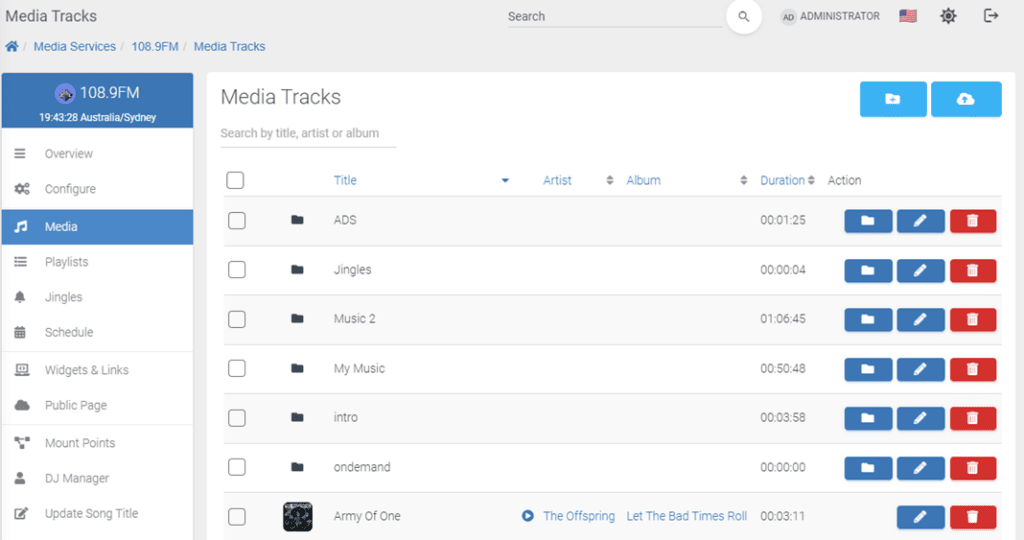
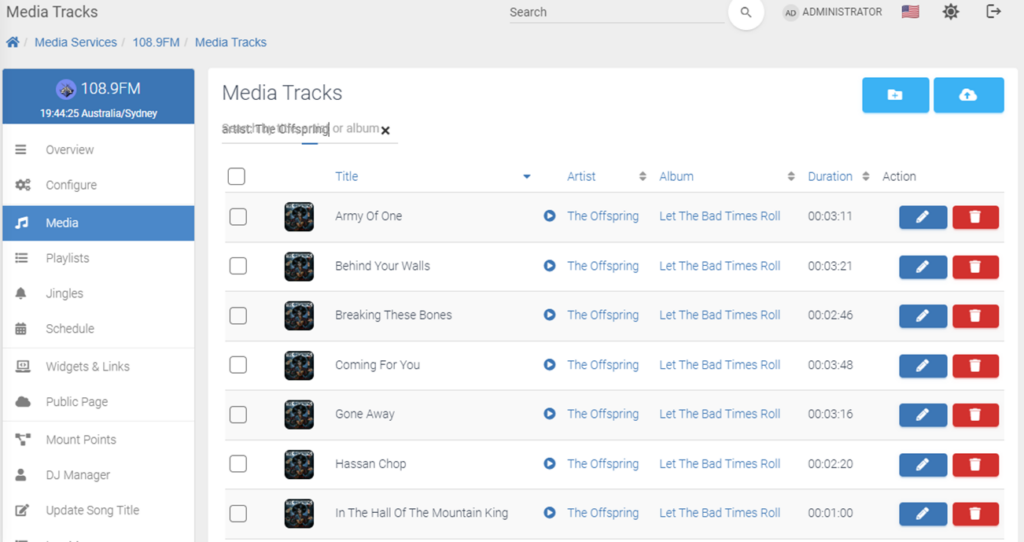
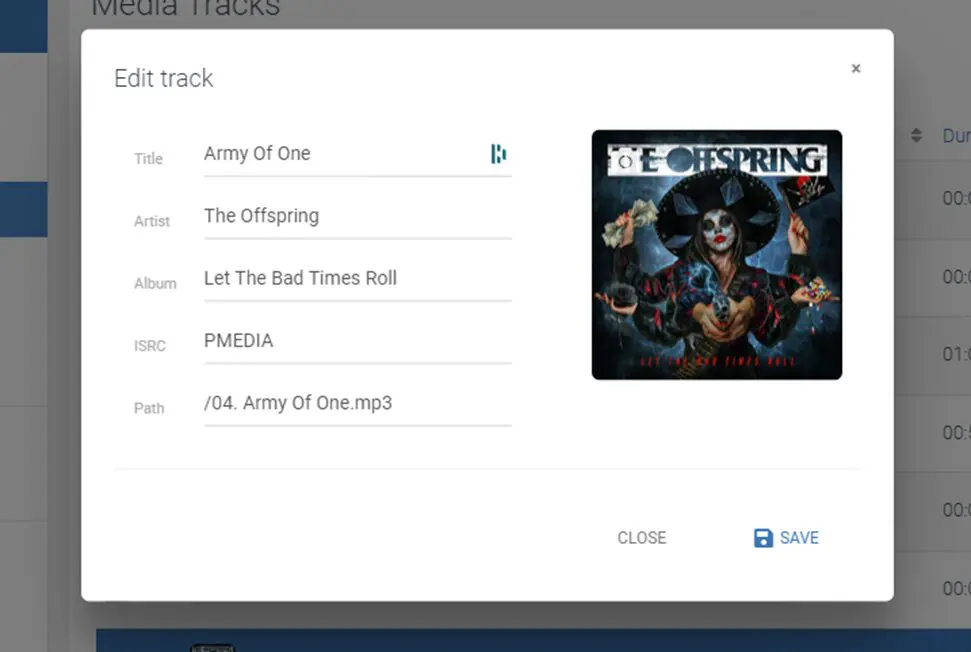
Track metadata can be edited by clicking on the Edit (Pencil icon) button or right clicking on a track and selecting edit track.
MediaCP Station Overview
The Service Overview page is the heart of your Radio Station, providing vital information to the current operation, and is refreshed automatically every few seconds with updated information.
As soon as AutoDJ goes live, information will start feeding through. When a track changes, you will see this within seconds on the status and recently played tracks widgets. All data on this page is live and updated automatically including listener numbers, bandwidth, storage, the map and listeners over 12 hours.
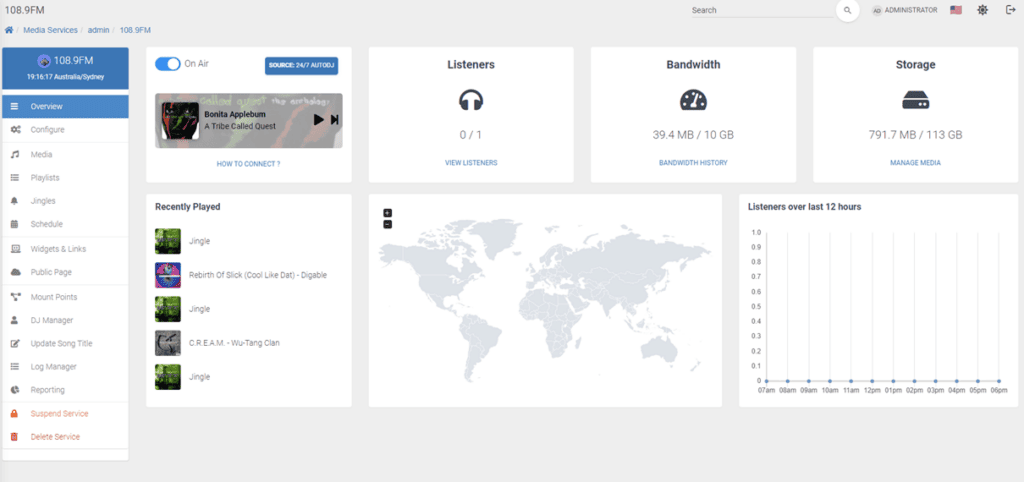
This component displays the status of both the service itself, as well as the broadcast. If the broadcast is online then a preview player will be displayed automatically with the ability to play the broadcast, or skip content.
Once a broadcast is connected to the default mountpoint, either by AutoDJ or a direct encoder connection, the Source: button will provide information about the current broadcast.
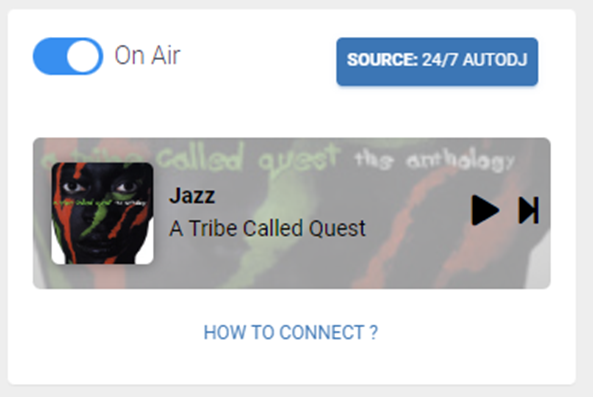
The How to Connect dialog will display connection details to the direct Icecast Service if AutoDJ is offline. Once AutoDJ is started, these details will change over with instructions on connecting to the AutoDJ service instead. Please note, it is required to refresh the page after starting AutoDJ in order to display the correct information here.