
NuCast Help Centre

Help With Your NuCast Services.

Find guides, tutorials and useful resources to help you manage your NuCast services, radio station and broadcasting software.

✓ Step-By-Step Guides
✓ Broadcasting Resources
✓ 24/7 Support Available
NuCast Knowledge Base Help Centre
Support Resources
Find The Information You Need

Browse practical guides covering your radio panel, media management, station operation and broadcasting software.

01
Quick Start Guides Learn the key parts of your radio service.
02
MediaCP Help Playlists, media management and station tools.
03
Broadcasting Resources Useful software and station information.
Quick Start Guides Get familiar with your service
MediaCP Resources Station and AutoDJ guidance
Broadcasting Software Free and paid software resources
24/7 Support Technical assistance when required
NuCast Knowledge Base

How Can We Help?

Browse our Help Centre guides and resources for information covering radio station management, MediaCP, AutoDJ, media libraries and broadcasting software.

NuCast Help Centre

MediaCP Quick Start Video Guide

Here we have some quick start video guides for the MediaCP software. The video guides simply provide you with a quick overview on key software components relevant to operating Audio Services.

MediaCP – How To Create A Playlist.

MediaCP – How To Upload Media Tracks via Media Manager.

MediaCP – How To Schedule A Playlist.

MediaCP – How To Add Media Files To A Playlist.

Paid Radio Automation Software

Here are some links to cool PAID radio automation software for your computer:

  1. SAM Broadcaster ProPlayoutONEOnAir RadioNextKast
  2. Have any links you’d like us to add? Contact Us!

Free Radio Automation Software

Here are some links to cool FREE radio automation software for your computer:

Have any links you’d like us to add? Contact Us!

MediaCP Media Library

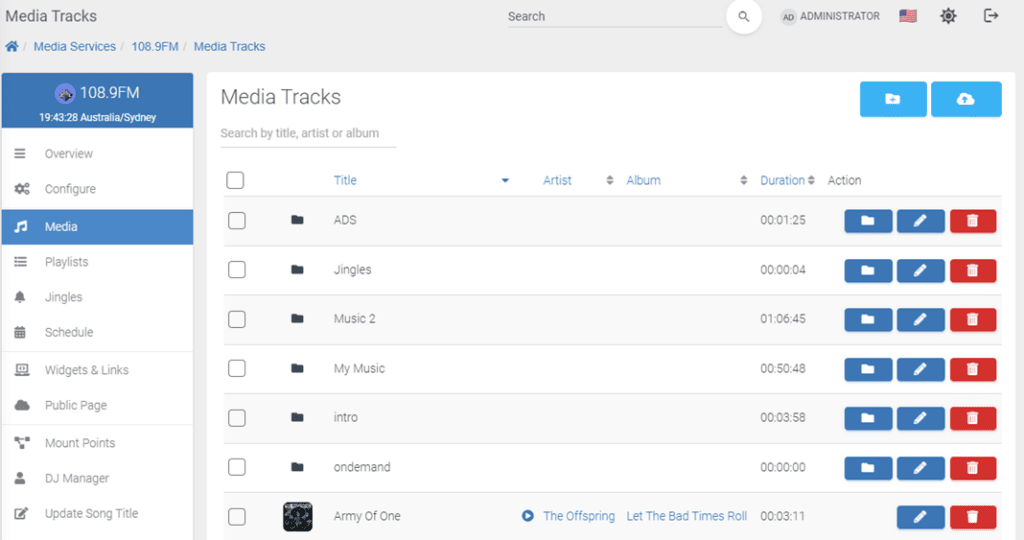
The Media Library user interface offers a comprehensive way to manage and organise tracks to be used with AutoDJ, as well as meta data and album covers for individual tracks. Access to this interface is only enabled where AutoDJ is enabled on the service.

FTP access details are also provided on this page if you would prefer to use FTP to manage your stations files. There is a full guide for using FTP in the Audio Broadcaster Guide

Tips & Tricks

  • Drag & Drop entire folders from your desktop onto the page to upload multiple files at once. 
  • AutoDJ supports AAC & MP3 content
  • Click on multiple items to quickly move or delete many tracks.
  • You can drag media into folders from the interface, even entire folders into other folders.
  • Right click on media tracks or folders for a context menu
  • Storage space is a combination from all radio channel within the same account. Content is shared between all your radio stations.

Finding / Searching Content

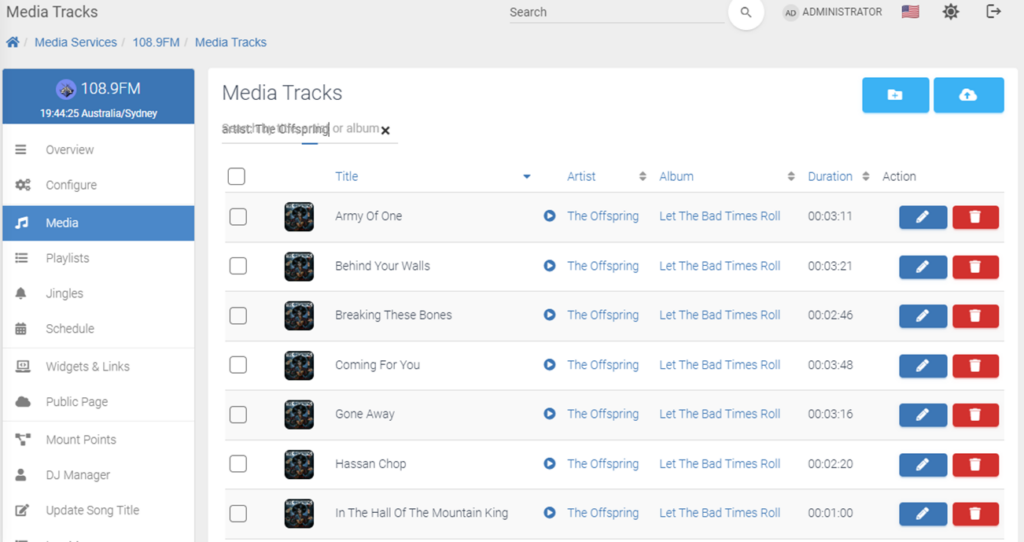
  • The search bar input allows searching of title, artist or album name and is smart enough to find the right content.
  • Prefix your search with “title:”, “artist:” or “album:” to search specific data
  • Click on an Artist or Album name to quickly find similar content

Meta Data

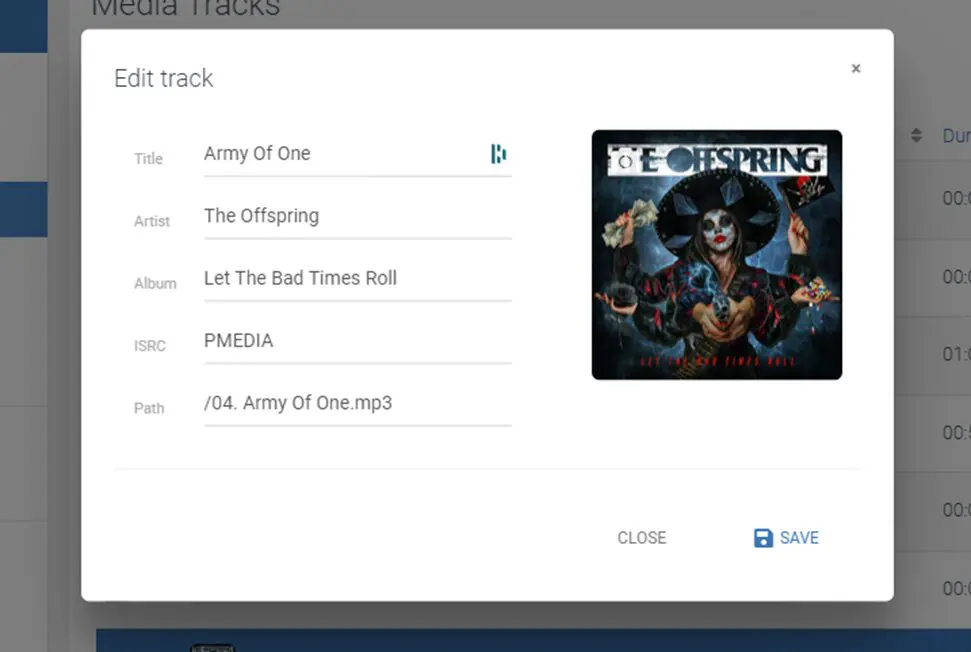
Track metadata can be edited by clicking on the Edit (Pencil icon) button or right clicking on a track and selecting edit track.

  • Upload Cover Albums to designate what is displayed to the user when this track plays
  • Configure ISRC code for royalty reporting, which will be displayed in the Reporting tools

MediaCP Station Overview

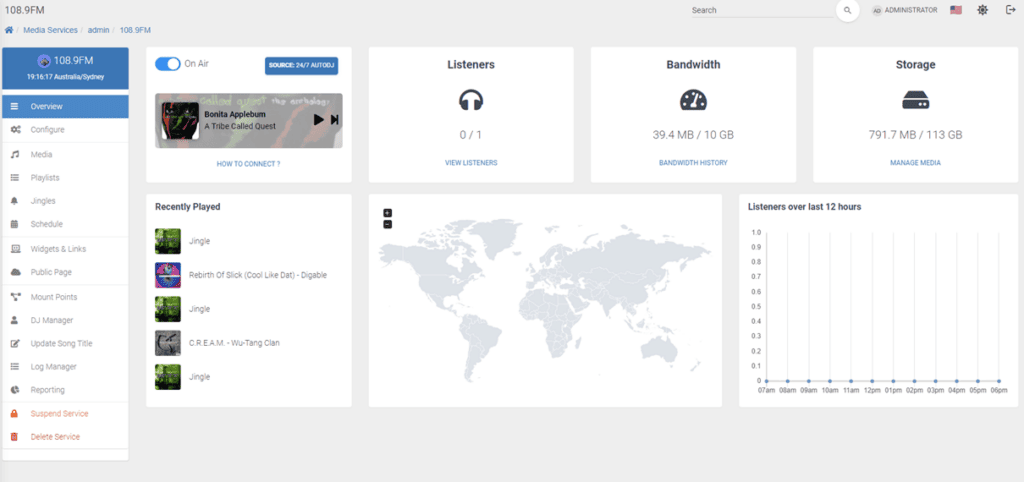
The Service Overview page is the heart of your Radio Station, providing vital information to the current operation, and is refreshed automatically every few seconds with updated information.

As soon as AutoDJ goes live, information will start feeding through. When a track changes, you will see this within seconds on the status and recently played tracks widgets. All data on this page is live and updated automatically including listener numbers, bandwidth, storage, the map and listeners over 12 hours.

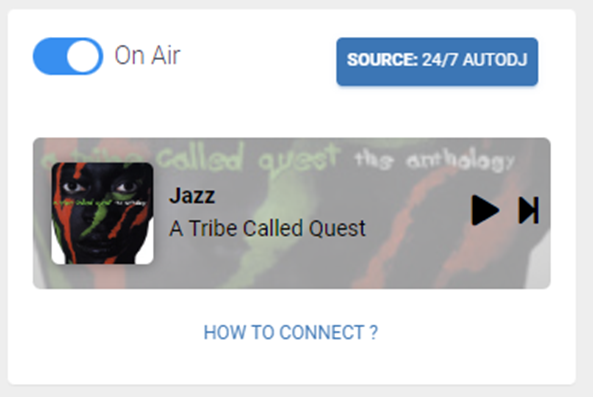
On Air Widget

This component displays the status of both the service itself, as well as the broadcast. If the broadcast is online then a preview player will be displayed automatically with the ability to play the broadcast, or skip content.

Once a broadcast is connected to the default mountpoint, either by AutoDJ or a direct encoder connection, the Source: button will provide information about the current broadcast. 

The How to Connect dialog will display connection details to the direct Icecast Service if AutoDJ is offline. Once AutoDJ is started, these details will change over with instructions on connecting to the AutoDJ service instead. Please note, it is required to refresh the page after starting AutoDJ in order to display the correct information here.

Need More Help?

Can't Find The Answer?

If the Help Centre doesn't answer your question, the NuCast team is here to help. Existing customers can submit a support ticket at any time, while general enquiries can be sent through our Contact Us page.

Customer Support

More Ways To Get Help

Use the most appropriate support channel depending on whether you need technical assistance, general information or help with your NuCast service.

24/7

Support Ticket

Existing customers can submit technical support requests through the customer portal 24 hours a day.

Submit Support Ticket →
CHAT

Live Chat

Speak with the NuCast team through Live Chat during our applicable U.K. business hours.

Start Live Chat →
MAIL

Contact NuCast

Have a general question or sales enquiry? Send a message to the NuCast team through our Contact page.

Contact The Team →
Useful Resources

Tools For Radio Broadcasters

Alongside the Help Centre, NuCast provides free tools and resources designed to help internet radio stations operate and grow.

01

Radio Player Generator

Create an embeddable HTML5 radio player for your station website.

Build Your Player →
02

Internet Radio Directories

Find radio directories where you can submit and promote your internet radio station.

View Directories →
03

Bandwidth Calculator

Estimate radio streaming data usage using your bitrate, listener numbers and listening time.

Calculate Bandwidth →
04

Radio Streaming

Explore NuCast radio hosting with SHOUTcast, Icecast, AutoDJ and U.K.-based support.

View Radio Hosting →
NuCast Support

Help When You Need It

Our Help Centre gives you access to useful self-service information, while the NuCast support team is available when you need additional assistance with your service.

Contact NuCast →
24/7/365 Support ticket availability
U.K. Based Infrastructure and support
Help Centre Self-service guides and resources
Live Chat Available during U.K. business hours
NuCast Help Centre

Still Need Assistance?

Our support team is available to help with your NuCast services. Contact us for general enquiries or submit a support ticket if you're an existing customer requiring technical assistance.